Managing inventory accurately is one of the biggest challenges in eCommerce and fulfillment. To help prevent stock issues and improve operational control, OXM provides a useful feature called the Threshold Function.
What is the Threshold Function?
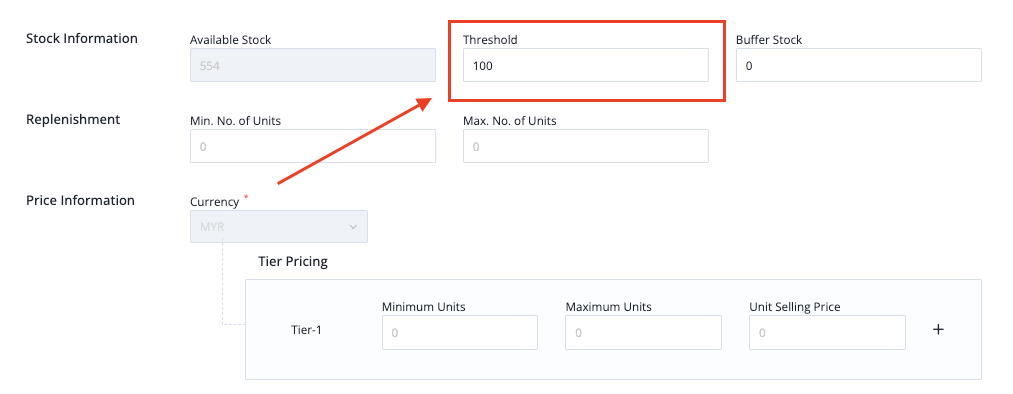
The Threshold Function in OXM allows you to set a minimum stock level (threshold) for each SKU.
When your stock reaches or falls below this level, the system will highlight it, allowing you to take timely action.
How Does It Work?
1. You define a threshold quantity for each SKU
2. The system continuously monitors your inventory levels
3. Once the stock quantity falls below the threshold:
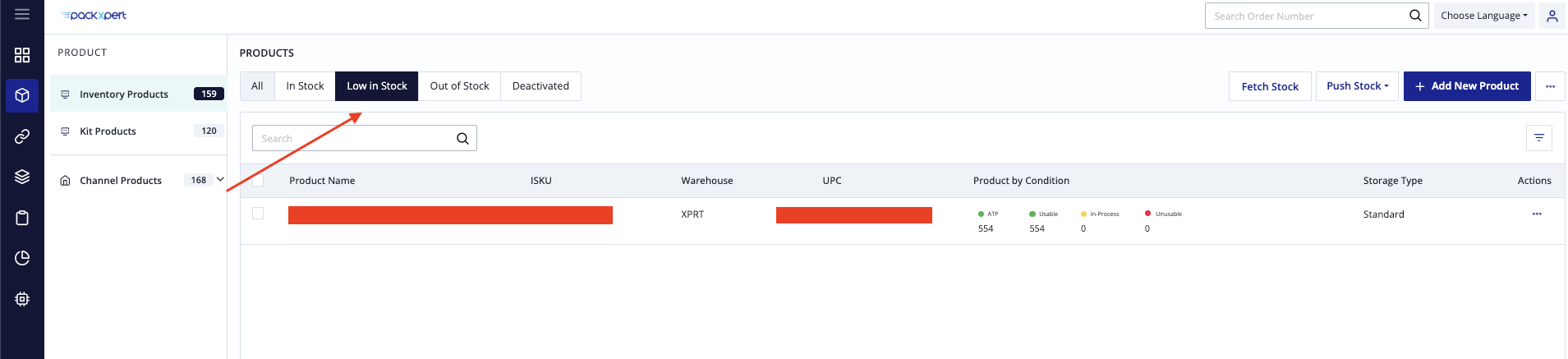
4. The SKU will automatically appear under the [Low in Stock] tab.
You can click the [Low in Stock] tab to view all SKUs that have dropped below their threshold. This helps you quickly identify which products need restocking and take the necessary next steps.
How to Set Product Threshold in OXM
Step 1: Log in to the OXM portal
Step 2: Go to the Product tab
Step 3: Click the three dots (⋮) under the Actions column for the selected SKU
Step 4: Click [Edit Product Details]
Step 5: Scroll to the middle section and enter the value in the [Threshold] field
Step 6: Click [Update Product] to save
What Happens When Stock Falls Below Threshold?
- The SKU will be displayed in the [Low in Stock] tab.
- You can easily monitor all low-stock items in one place.
- This allows you to plan and proceed with restocking actions in advance.
Important Remark
The Threshold is NOT buffer stock.
It does not block or reserve inventory.
It only serves as a visual indicator, showing SKUs under the [Low in Stock] tab when stock falls below the defined level.
Recommendation
- Set a threshold for every SKU
- Regularly monitor the [Low in Stock] tab
- When a SKU appears in the list, take immediate action to replenish stock
This simple practice can help you avoid stockouts and maintain smooth operations.
Feel free to reach out to Packxpert Support if you have any enquiries.
Was this article helpful?
That’s Great!
Thank you for your feedback
Sorry! We couldn't be helpful
Thank you for your feedback
Feedback sent
We appreciate your effort and will try to fix the article