What is Expiry Management?
Expiry Management is a feature in OXM that allows you to track the shelf life of your products directly within the system.
By capturing expiration dates during the inbound (receiving) and outbound (picking) processes, OXM provides full visibility over your inventory’s freshness and ensures better stock control.
Purpose of Expiry Management
1. First-Expiry, First-Out (FEFO)
The system automatically prioritizes items with the earliest expiry date for order fulfillment.
This ensures older stock is always shipped out first.
2. Regulatory Compliance
Helps prevent the shipment of expired or near-expiry products, ensuring compliance with industry standards and protecting your customers.
3. Better Inbound Control
Ensures that newly received stock meets your minimum shelf-life requirements, so you don’t accept products that are too close to expiry.
What Happens When Expiry Management is Enabled?
When Expiry Management is turned on in OXM:
- The system will automatically apply the FEFO (First-Expiry, First-Out) method
- Items with the earliest expiry date will be shipped first, regardless of when they were received
- Even if a newer batch arrives later, it will not be prioritized if its expiry date is longer
This ensures optimal stock rotation and minimizes wastage.

Remarks : All values in Expiry Management are measured in days
Product (Days)
Represents the total shelf life of the product.
- If no expiry date is manually entered, the system will auto-calculate:
Expiry Date = Manufacturing Date + Product Life (Days)
Inbound (Days)
Defines the minimum remaining shelf life required for products during inbound.
- If the difference between inbound date and expiry date is less than the Inbound setting, the system can block the inbound (if enabled in company settings)
Outbound (Days)
Defines how many days before expiry the stock should be restricted from shipping.
- Inventory will be automatically placed on hold when it reaches this threshold
- This prevents shipping products that are too close to expiry
Which Products Should Use Expiry Management?
We strongly recommend enabling this feature for:
- Perishables: Food, beverages, supplements
- Health & Beauty: Skincare, cosmetics, pharmaceuticals
- Chemicals: Cleaning agents, adhesives, industrial liquids
- Warranty-Based Products: Items with shelf-life or date-sensitive usage
How to Check if Expiry Management is Enabled
Step 1: Log in to the OXM portal
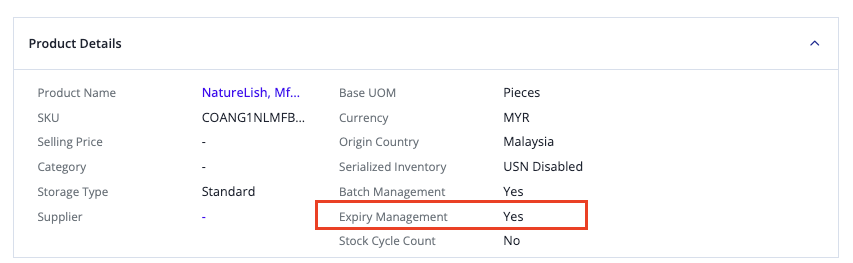
Step 2: Go to the Product tab and select the SKU
Step 3: Under Product Details:
- [YES] → Expiry Management is enabled
- [NO] → Expiry Management is not enabled
Important Limitation
Once a SKU is created, Expiry Management cannot be turned on directly.
If you need to enable it, please contact Packxpert Support with the following details:
Request Template
Subject: Enable Expiry Management
Please help to enable Expiry Management for the following SKU:
- SKU:
- Expiry Management: Yes
- Product (Days): 730 (Example)
- Inbound (Days): 650 (Example)
- Outbound (Days): 180 (Example)
How to Set Up Expiry Management (New SKU)
When creating a new SKU:
- Tick Expiry Management
- Enter values for:
- Product (Days)
- Inbound (Days)
- Outbound (Days)
- Click [Add Product] to save

Final Recommendation
To ensure smooth operations and reduce risk:
- Always enable Expiry Management for relevant products
- Set appropriate Inbound and Outbound thresholds
- Regularly monitor stock with upcoming expiry dates
This will help you minimize wastage, avoid compliance issues, and maintain product quality for your customers.
Feel free to reach out to Packxpert Support if you have any enquiries.
Was this article helpful?
That’s Great!
Thank you for your feedback
Sorry! We couldn't be helpful
Thank you for your feedback
Feedback sent
We appreciate your effort and will try to fix the article